Processing Computer Language: A Practical Guide for Creative Coders
If you’ve ever wanted to create interactive graphics, generative art, or data visualizations without wading through enterprise-level Java complexity, Processing is your answer. This open source programming language and development environment has been the go-to tool for artists, designers, and educators since 2001.
This guide is intended for artists, designers, educators, and anyone interested in creative coding or visual programming.
Whether you’re teaching programming to first-year students, building festival installations, or prototyping visual experiments, Processing offers something rare: immediate visual feedback with minimal setup. Let’s break down everything you need to know to start coding with this powerful creative tool.
Key Takeaways
Processing is a Java-based, open-source language and IDE created in 2001 by Ben Fry and Casey Reas at the MIT Media Lab, specifically designed for visual arts, electronic arts, and creative coding education.
Every processing sketch revolves around the setup function and draw block loops, making animations and interactivity straightforward even for complete beginners.
Processing runs on Windows, macOS, Linux, and Raspberry Pi, and can communicate with Arduino, sensors, cameras, and other hardware for physical computing projects.
Your code can be repurposed for the web via p5.js or exported as standalone desktop applications for sharing installations, demos, and exported applications.
It’s built for artists, designers, students, and researchers who need to create visuals, data visualizations, and interactive projects without wrestling with full enterprise Java.
What Is the Processing Computer Language?
Processing is an open-source programming language and integrated development environment (IDE) specifically designed for artists, designers, and beginners who want to create interactive graphics, animations, and visualizations.
Processing is an open source programming language and integrated development environment focused on graphics and interactivity. Unlike general-purpose programming stacks, it was built from the ground up to help people write code that produces visual output.
Under the hood, the processing language is built on top of Java and compiles down to Java bytecode. The magic is in what it hides: boilerplate like class declarations, main methods, and window management disappear. You open the processing ide, type a few lines, hit the run button, and see your creation immediately.
Each papplet sketch is effectively a subclass of the PApplet class. This architecture allows sketches to run in their own window while still accessing java libraries and the full java platform when needed. You get the power of java code without the ceremony.
Processing first appeared around 2001-2003 from the MIT Media Lab’s Aesthetics + Computation Group. It emerged as a direct successor to John Maeda’s Design By Numbers tool from the 1990s. The creators-Ben Fry and Casey Reas-designed it primarily for artists, designers, and educators who needed to produce visuals without becoming software engineers first.
The syntax is “Java-esque” but simplified, with additional classes defined specifically for drawing shapes and handling interaction. Functions like size(), line(), ellipse(), and fill() make the visual context immediately accessible.

Why Processing Matters in 2024
Despite countless new frameworks, libraries, and tools emerging every year, Processing remains a core tool in creative coding, education, and rapid prototyping. It has staying power for good reasons.
The barrier to entry is remarkably low. Download the software, launch it, and you’re producing visuals within seconds. No build systems, no dependency management, no configuration files. The IDE is tailored for quick experiments where visual feedback matters more than architectural purity.
Processing influenced entire ecosystems. p5.js brought the same model to browsers, letting JavaScript developers apply Processing’s philosophy to web projects. Processing.py (co-developed with Google since 2014) opened the door for Python learners. These aren’t just ports-they’re evidence of how powerful the setup()/draw() paradigm really is.
Typical domains where Processing thrives today:
Interactive art and generative prints
Projection mapping and VJ performances
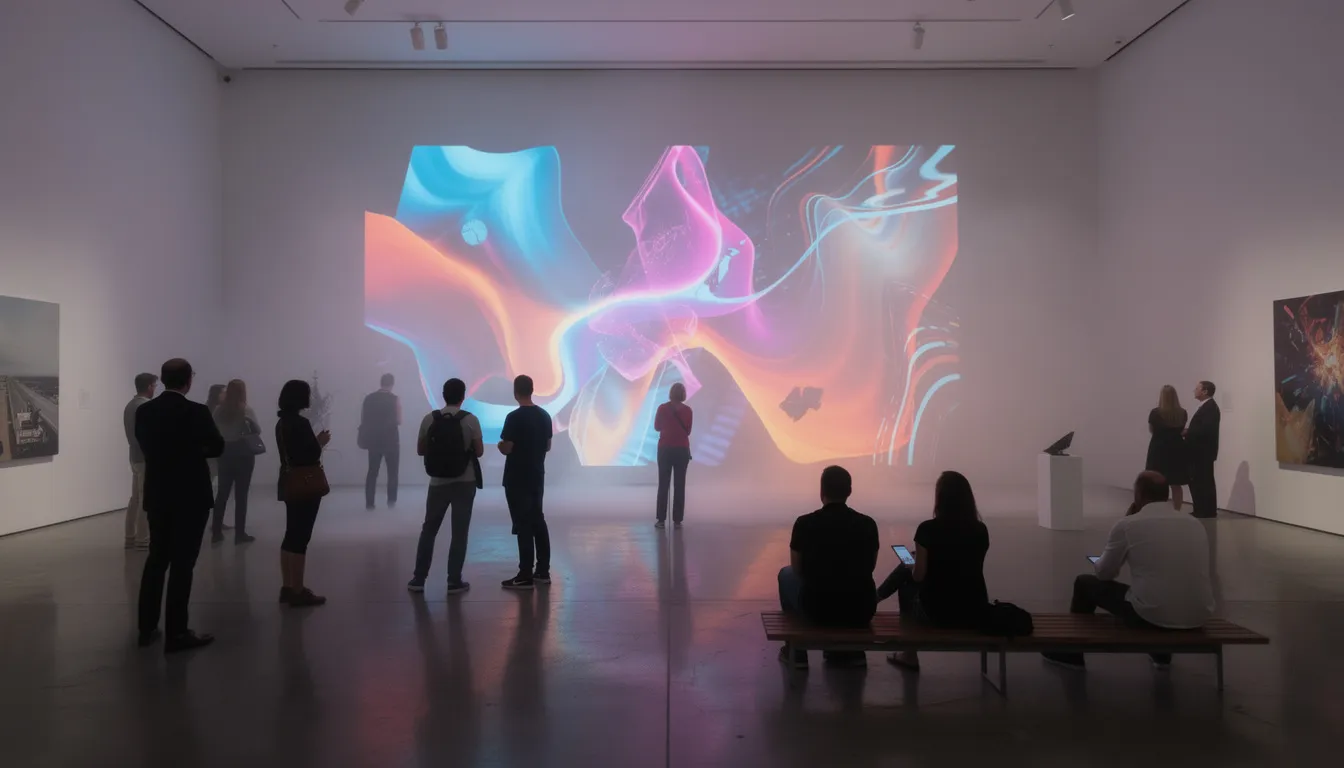
Museum exhibits and festival installations
Teaching first-year programming courses
Data journalism visualizations
Research prototypes and exploratory work
Compare this to heavier tools like full JavaFX or game engines like Unity. Those are powerful, but they’re overkill for prototyping, quick visuals, or teaching basics. Processing hits a sweet spot: sophisticated enough for real projects, simple enough to learn in an afternoon.
Processing Fundamentals: How a Sketch Works
Let’s walk through the lifecycle of a simple processing sketch. Understanding this structure unlocks everything else.
The setup() Function
The void setup function runs exactly once when your sketch starts. This is where you configure the canvas and preload resources:
void setup() { size(800, 600); frameRate(60); background(255); }
Common tasks in setup():
Set canvas dimensions with size(width, height)
Configure frame rate (default is 60 FPS)
Load images, fonts, or sounds
Initialize variables and objects
The draw() Loop
The void draw function is the heartbeat of your sketch. It runs repeatedly-typically 60 times per second-updating and redrawing the screen:
void draw() { background(220); ellipse(mouseX, mouseY, 50, 50); }
This continuous loop is what makes animations and interactivity possible. Every frame, you clear the background and redraw everything at its new position.
Variables: Global vs Local
Variables declared outside setup() and draw() persist between frames. This enables movement, state tracking, and game logic:
float x = 0;
void setup() { size(400, 400); }
void draw() { background(255); ellipse(x, height/2, 50, 50); x += 1; }
Local variables (declared inside a function) disappear after each frame-use them for temporary calculations, not persistent state.
The Coordinate System
Processing uses a coordinate system with the origin at the top-left corner:
X increases as you move right
Y increases as you move down
This inverts typical math conventions but matches how screens render pixels. Keep this in mind when drawing shapes and positioning text.
Note: An optional settings() block exists for pre-setup configurations like fullScreen() or renderer selection. You’ll rarely need it in the default IDE, but it becomes important if you’re using external environments like Eclipse or IntelliJ.
Drawing, Color, and Animation
This is where processing programs shine. Let’s get visual with minimal theory and maximum code.
Core Shape Functions
Processing provides built-in functions for drawing shapes:
Function | Description | Reference Point |
|---|---|---|
point(x, y) | Single pixel | Center |
line(x1, y1, x2, y2) | Line between two points | Endpoints |
rect(x, y, w, h) | Rectangle | Top-left corner |
ellipse(x, y, w, h) | Ellipse/circle | Center |
triangle(x1, y1, x2, y2, x3, y3) | Triangle | Three vertices |
quad(...) | Four-sided polygon | Four vertices |
arc(x, y, w, h, start, stop) | Arc segment | Center |
The following code draws a simple scene: |
void setup() { size(400, 400); }
void draw() { background(240); rect(50, 50, 100, 80); ellipse(250, 100, 60, 60); line(0, 200, 400, 200); }
Styling Functions
Colors and stroke settings persist until you change them:
fill(255, 0, 0); // Red fill stroke(0, 0, 255); // Blue outline strokeWeight(3); // Thicker lines rect(50, 50, 100, 100);
noFill(); // Hollow shapes ellipse(200, 100, 80, 80);
noStroke(); // No outline fill(0, 255, 0); rect(300, 50, 50, 50);
Simple Animation Pattern
Animation in Processing follows a predictable pattern:
Declare a global variable for position
Clear the background each frame
Draw the shape at the current position
Update the position
float x = 0;
void setup() { size(400, 200); }
void draw() { background(255); ellipse(x, height/2, 40, 40); x = x + 2;
if (x > width) { x = 0; } }
Tip: Omitting background() creates trailing effects as previous frames remain visible. This can be intentional for certain visual effects but surprises newcomers expecting clean frames.
Practice task: Create a bouncing ball that reverses direction when it hits the window edges. This solidifies your understanding of the draw loop, conditionals, and state variables.
Interactivity: Mouse, Keyboard, and Beyond
Processing was built for interacting with users in real time, not for producing static images. Interactivity is baked into the language.
Mouse Interaction
Built-in variables track mouse state continuously:
Variable | Description |
|---|---|
mouseX | Current horizontal position |
mouseY | Current vertical position |
mousePressed | Boolean: is any mouse button pressed? |
pmouseX | Previous frame’s X position |
pmouseY | Previous frame’s Y position |
Event functions fire when specific actions occur: |
void mousePressed() { println("Clicked at: " + mouseX + ", " + mouseY); }
void mouseReleased() { println("Released!"); }
void mouseDragged() { line(pmouseX, pmouseY, mouseX, mouseY); }
Keyboard Interaction
Keyboard input works through similar mechanisms:
void keyPressed() { if (key == ' ') { // Spacebar pressed paused = !paused; }
if (keyCode == LEFT) { x -= 10; } if (keyCode == RIGHT) { x += 10; } }
The key variable holds the character pressed, while keyCode provides integer values for special keys like arrows.
Building Interactive Sketches
Combine these elements to create responsive experiences:
color bgColor = color(255);
void setup() { size(400, 400); }
void draw() { background(bgColor); ellipse(mouseX, mouseY, 50, 50); }
void mousePressed() { bgColor = color(random(255), random(255), random(255)); }
Click anywhere, and the background color changes randomly. The void mousepressed function fires every time you press a mouse button.
Processing can also read from external input sources like MIDI controllers, cameras, and sensors through libraries. This opens doors to more advanced reactive artworks and installations.
Processing and Hardware: Arduino, Raspberry Pi, and Physical Computing
Processing has deep roots in physical computing. If you’ve used Arduino, you’ve already experienced Processing’s influence.
The Processing-Arduino Connection
The historical link is direct: Wiring (precursor to Arduino) and Arduino itself drew from Processing’s philosophy of making programming accessible to artists and designers. They share the same setup()/loop() pattern, similar IDE design, and emphasis on immediate results.
Typical workflow:
Arduino reads sensor data (temperature, distance, buttons)
Arduino sends values over serial connection
Processing sketch receives data via Serial library
Processing visualizes the data in real time
import processing.serial.*; Serial myPort; int sensorValue = 0;
void setup() { size(400, 400); myPort = new Serial(this, "COM3", 9600); }
void draw() { background(255); ellipse(width/2, height/2, sensorValue, sensorValue); }
void serialEvent(Serial p) { sensorValue = p.read(); }
Raspberry Pi Integration
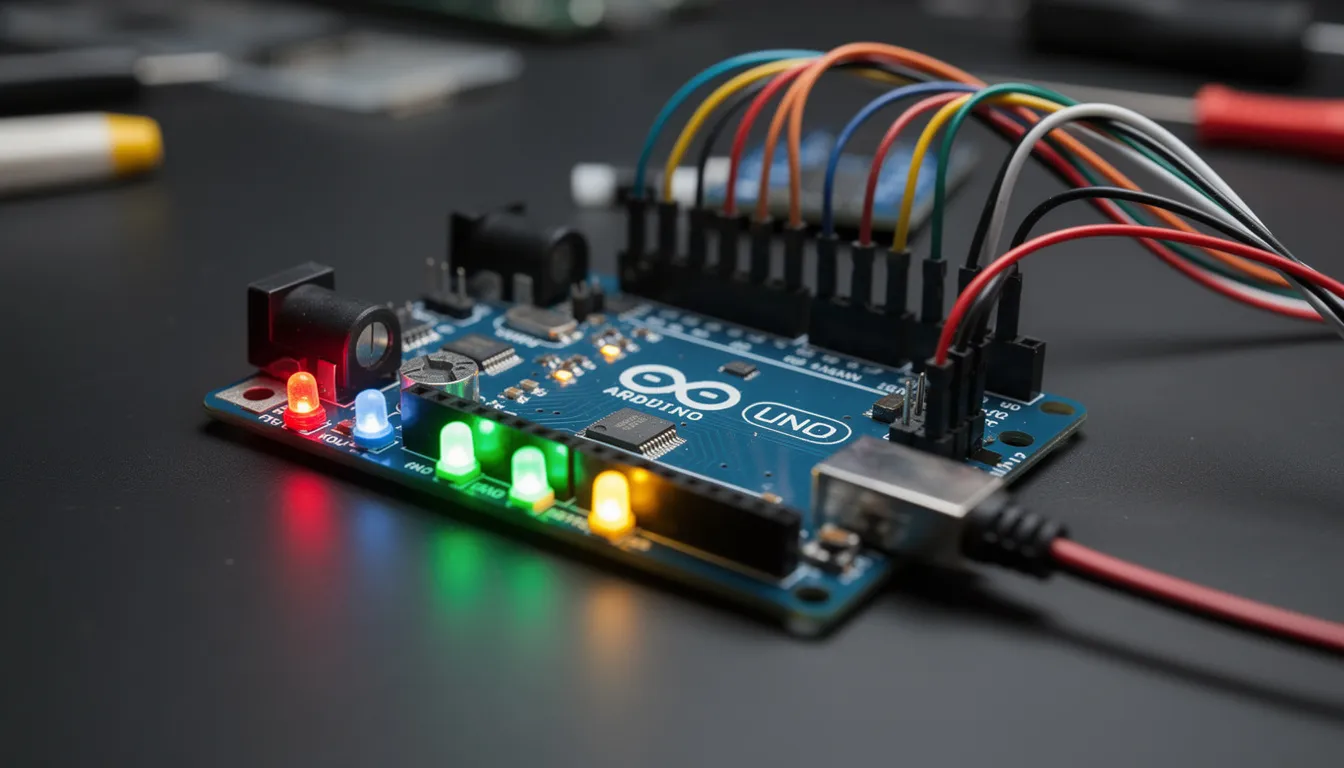
Processing runs directly on Raspberry Pi OS, enabling sketches to control GPIO pins, LEDs, and buttons. Classroom projects from 2015-2024 have demonstrated interactive installations where Processing sketches respond to physical inputs without requiring a separate computer.
Project idea: Build an interactive LED installation where Processing visuals respond in real time to button presses or distance sensor input. Map proximity readings to circle sizes, trigger color changes on button press, or create reactive LED walls synced to your sketch.
Extending Processing: Libraries, Modes, and the Web
Processing scales from basic sketches to advanced domains through its library ecosystem and alternative modes.
Core Library Categories
Category | Functionality | Example Use |
|---|---|---|
Sound | Audio playback, synthesis | Generative music, sound-reactive visuals |
Video | Webcam capture, movie playback | Interactive mirrors, video processing |
Serial | Communication with external devices | Arduino integration |
Net | UDP/TCP clients and servers | Networked installations |
Third-Party Libraries
Popular additions extend Processing’s capabilities:
Computer vision: OpenCV bindings for face detection, motion tracking
Physics: Box2D bindings for realistic object simulation
Data visualization: CSV loading, charting, mapping
All installable through the built-in Contribution Manager-no manual downloads or path configuration needed.
Modes in the IDE
The processing ide supports different modes for different goals:
Java mode (default): Desktop applications, hardware integration
p5.js mode: JavaScript output for web deployment
Python mode: Write processing code using Python syntax via Processing.py
Web Deployment
Two paths exist for getting sketches online:
p5.js: Active, maintained JavaScript library that runs Processing-style sketches directly in browsers
Processing.js: Earlier approach (discontinued 2018) that transpiled Processing code to JavaScript
Export options also include standalone applications for Windows, macOS, and Linux. These bundle a lightweight runtime, so exhibitions and demos don’t require Processing installation on the display computer.
Who Uses Processing and What Can You Build?
Let’s talk real-world impact with concrete examples rather than vague claims.
Common User Groups
Visual artists: Generative prints, algorithmic compositions
VJs: Live performance visuals, festival backdrops
University lecturers: NYU’s ITP program popularized Processing through instructors like Daniel Shiffman
High-school teachers: Introduction to programming through visual projects
Creative agencies: Rapid prototyping for client pitches
Data journalists: Interactive visualizations for news stories
Researchers: Quick visualization of datasets and simulations
Typical Project Types
Project Type | Description |
|---|---|
Generative art prints | Algorithmic compositions for physical printing |
Live performance visuals | Real-time graphics for concerts and theater |
Theater backdrops | Projection-mapped scenery responding to performers |
Interactive museum exhibits | Touch-responsive installations for public spaces |
Research visualizations | Data exploration and presentation tools |
Simple games | Prototypes and experimental gameplay |
Notable festivals, galleries, and labs-including Ars Electronica-have exhibited Processing-based work throughout the 2010s and 2020s, affirming its role in new media art. |
Want inspiration? Explore the official Processing Examples (accessible through the File menu) and the OpenProcessing community gallery. You’ll find thousands of sketches showcasing current trends like AI-generated patterns, WebGL shaders, and data-driven art.
Getting Started with Processing Today
Here’s your practical first-steps guide to getting up and running.
Download and Install
Visit processing.org and download the latest release (4.x as of 2024)
Choose the correct installer for your platform (Windows, macOS, or Linux)
Extract and run-no additional installation or configuration needed
Your First Sketch
Launch the processing ide
Type the following code:
void setup() { size(400, 400); }
void draw() { background(220); line(0, 0, mouseX, mouseY); }
Click the run button (or press Ctrl+R / Cmd+R)
Move your mouse and watch the line follow
You just created your first interactive sketch in under a minute.
Recommended Resources
Official Reference: Complete documentation of every function
Examples menu: 200+ built-in sketches demonstrating techniques
“Learning Processing” by Daniel Shiffman: The definitive beginner book
The Coding Train (YouTube): Free video tutorials with enthusiastic instruction
Simple Learning Plan
Week | Focus | Goal |
|---|---|---|
1 | Shapes and color | Draw static compositions, understand coordinate system |
2 | Animation and interaction | Create moving objects, respond to mouse and keyboard |
3 | Personal project | Build something you care about (generative poster, simple game) |
Processing works best when you have different goals in mind-artistic expression, learning basics, or building prototypes. Define your purpose early, and let that guide what you explore.
Frequently Asked Questions
FAQ
Is Processing still worth learning if I already know Java or JavaScript?
For experienced Java or JavaScript developers, Processing offers a faster path to visual experiments, prototypes, and data-driven art than setting up full frameworks from scratch. Your existing Java knowledge transfers directly since processing code compiles to standard java bytecode. JavaScript developers can use p5.js to apply the same mental model in the browser. Consider it a complementary tool for exploring ideas visually before porting them into production java applications or other software.
Can Processing handle large, performance-intensive projects?
Processing is well-suited to medium-scale interactive pieces, live visuals, and classroom projects. It’s used to create everything from festival installations to research prototypes. However, it’s not optimized as a full game engine. Performance depends on renderer choice (P2D and P3D use hardware acceleration via OpenGL), resolution, and algorithm efficiency. Use aliased mathematical functions and efficient algorithms where possible. If your project grows beyond what Processing can comfortably handle, profile your sketch and consider migrating to lower-level Java or specialized engines. It’s excellent for prototyping but has limits at enterprise scale.
Do I need to install Java separately to use Processing?
No. Recent Processing downloads (3.x and later) bundle a compatible Java runtime on all major platforms. Users typically don’t need a separate Java installation. Advanced users can point Processing to a custom JDK if needed for integration with other tools or libraries. Check the official installation instructions for any platform-specific details, especially if you’re on an unusual configuration or working after significant Processing updates.
How is Processing different from p5.js and Processing.py?
Processing (Java mode) runs on the JVM as a desktop application with deep hardware integration. p5.js is a JavaScript library for running Processing-style sketches directly in browsers-great for web deployment without requiring Java. Processing.py (Python mode) lets you write processing code using Python syntax, appealing to learners and teams already invested in Python. All three share a common design philosophy-accessible creative coding with setup()/draw() at the core-with differences mainly in language, runtime environment, and deployment targets. They represent different paths to similar goals.
Can I use Processing in commercial or client projects?
Processing itself is open source, with core libraries often under GPL or LGPL licenses. The sketches and processing programs you write are typically yours to license however you choose. However, review specific library licenses if you rely on third-party extensions, especially for closed-source or commercial deployments. Standard data types and core functions are generally fine, but additional classes from community libraries may have their own restrictions. If licensing or deployment constraints apply, consider using Processing for prototyping and fix errors in your workflow before building production versions in other languages or environments.